To turn the touchscreen on or off on a Chromebook, press Search + Shift + T (or Launcher + Shift + T). If the shortcut does not respond right away, open your Chrome browser, navigate to chrome://flags/#ash-debug-shortcuts, switch the Debugging keyboard shortcuts setting to Enabled, and restart your device. Once rebooted, using this key combination will instantly toggle touch input without disrupting your trackpad or keyboard.
While ChromeOS keeps the touch digitizer active by default on supported models, enabling this developer flag is the only official method to gain a direct hardware toggle switch. Whether you need to disable touch controls temporarily to clean your screen and prevent accidental palm taps, or re-enable an unresponsive display, this guide covers the complete step-by-step setup and troubleshooting fixes below.
(Note: Ensure your device physically includes a touchscreen digitizer before proceeding, as software settings cannot add touch functionality to standard non-touch panels.)
Method 1: The Working Keyboard Shortcut (Via Chrome Flags)
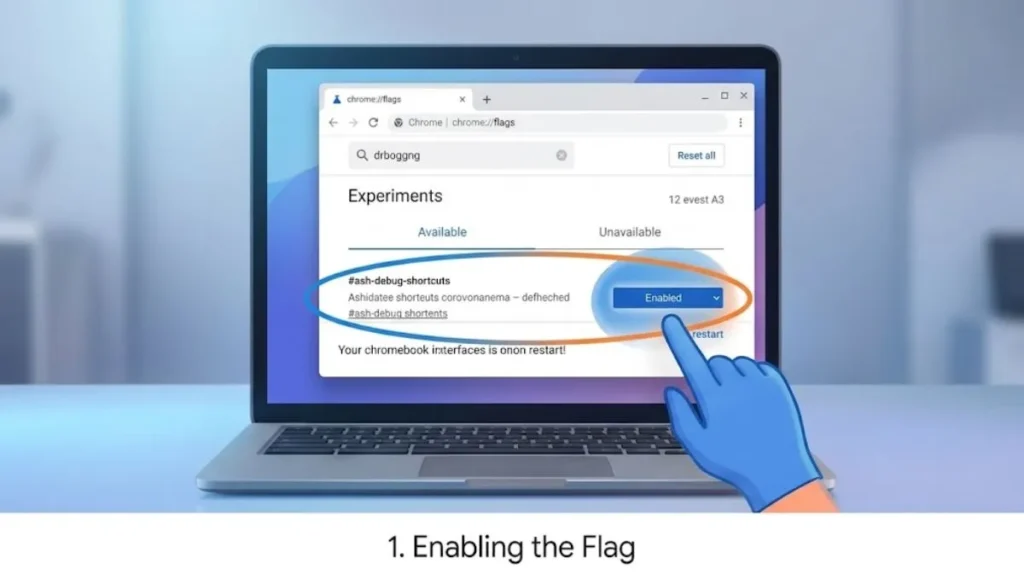
ChromeOS does not offer a public keyboard shortcut for touch toggling out of the box. To unlock the official keyboard shortcut (Search + Shift + T), you must first enable Chrome’s built-in debugging shortcuts flag.
1.Open Chrome Flags:
Open the Google Chrome browser on your Chromebook. In the omnibox (address bar), type chrome://flags and press Enter.
2.Search for Debugging Keyboard Shortcuts:
In the search box at the top of the Flags page, type Debugging keyboard shortcuts (or search #ash-debug-shortcuts).
3.Enable the Flag:
Click the drop-down menu next to Debugging keyboard shortcuts and change the value from Default to Enabled.
4.Restart Your Chromebook:
Click the blue Restart (or Relaunch) button that appears in the bottom-right corner to reboot ChromeOS.
5.Toggle Touch Screen On or Off:
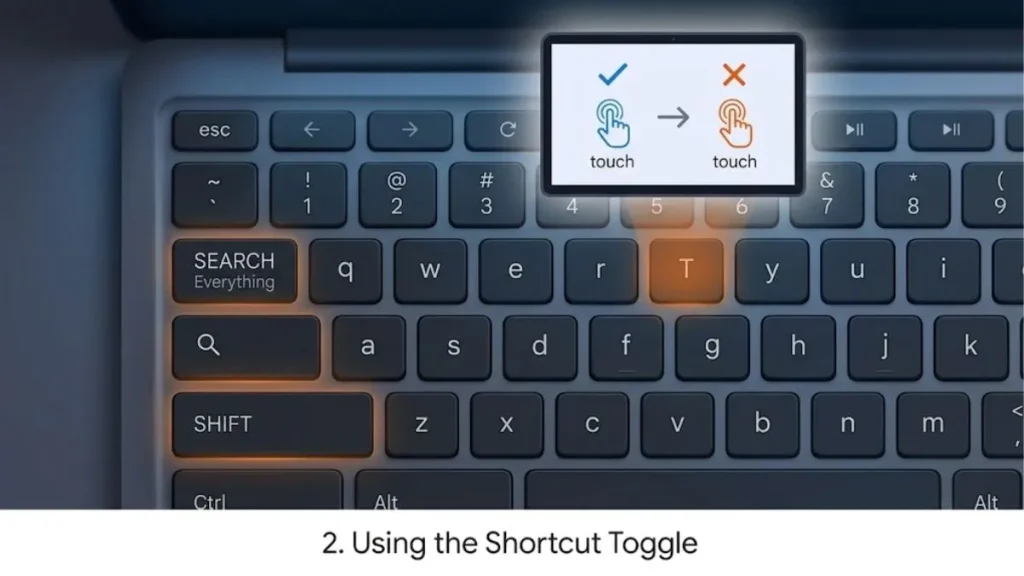
Once your Chromebook reboots, press Search + Shift + T (or Launcher / Everything Button + Shift + T) simultaneously. This instantly turns the touchscreen display on or off.
(Note: To toggle the physical touchpad on or off using this same flag, press Search + Shift + P.)
Method 2: Check ChromeOS Accessibility & Device Settings
If your touchscreen is unresponsive and you prefer not to use developer flags, verify that touch and pointer options are properly configured in standard ChromeOS settings.
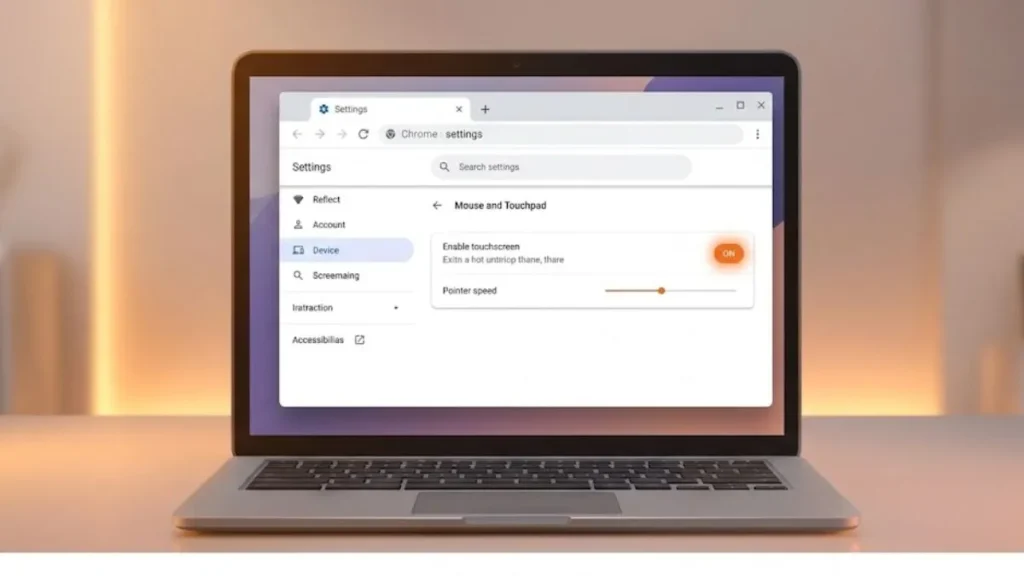
- Click on the Quick Settings panel (the clock icon in the bottom-right corner of your shelf).
- Click the Settings (gear) icon.
- In the left-hand navigation sidebar, select Device.
- Click on Touchpad (or Mouse and Touchpad).
- Ensure tap-to-click and cursor speed settings are active. If an external display or tablet setting is connected, verify that primary display touch recognition is set to your internal screen.
Troubleshooting: Why Is My Chromebook Touch Screen Not Working?
If your touchscreen remains unresponsive after enabling the shortcut, apply these targeted hardware and software fixes:
| Issue | Root Cause | Solution |
| Dirty / Smudged Glass | Capacitive sensor blocked by oils or debris | Power down the device. Wipe the screen using a dry microfiber cloth with light pressure. Never spray liquid directly onto the screen. |
| Driver / OS Glitch | Background ChromeOS process hung | Perform a hardware reset: Hold down the physical Refresh key (circular arrow) and tap the Power button once. Release Refresh when the Chromebook boots. |
| Outdated Firmware | Pending ChromeOS update | Go to Settings > About ChromeOS > Check for updates. Install pending updates and reboot. |
| Hardware Disconnect | Loose display digitizer cable | If the screen works intermittently when adjusting the laptop hinge, the internal ribbon cable requires hardware repair. |
Frequently Asked Questions
Can I turn off the touchscreen without using Chrome Flags?
No. ChromeOS does not include a native on/off toggle switch inside the standard Settings app for the touch digitizer. Enabling #ash-debug-shortcuts in chrome://flags is the only official method to toggle the screen on and off via hardware keys.
Does disabling the touchscreen turn off the touchpad?
No. The touchscreen shortcut (Search + Shift + T) and touchpad shortcut (Search + Shift + P) operate independently. Disabling your touchscreen will not interfere with your keyboard, mouse, or trackpad.
Will a factory reset (Powerwash) re-enable my touchscreen?
Yes. Performing a Powerwash resets all Chrome flags to their default state, which automatically restores standard touch input functionality.


I just tried this and it works great! Thanks for the tip!